Tracking profiles
A tracking profile is a rule: while a condition holds, such as charging, Android Auto or a speed, Colota records and syncs with that profile's interval, movement threshold and sync interval instead of the Tracking & sync values.
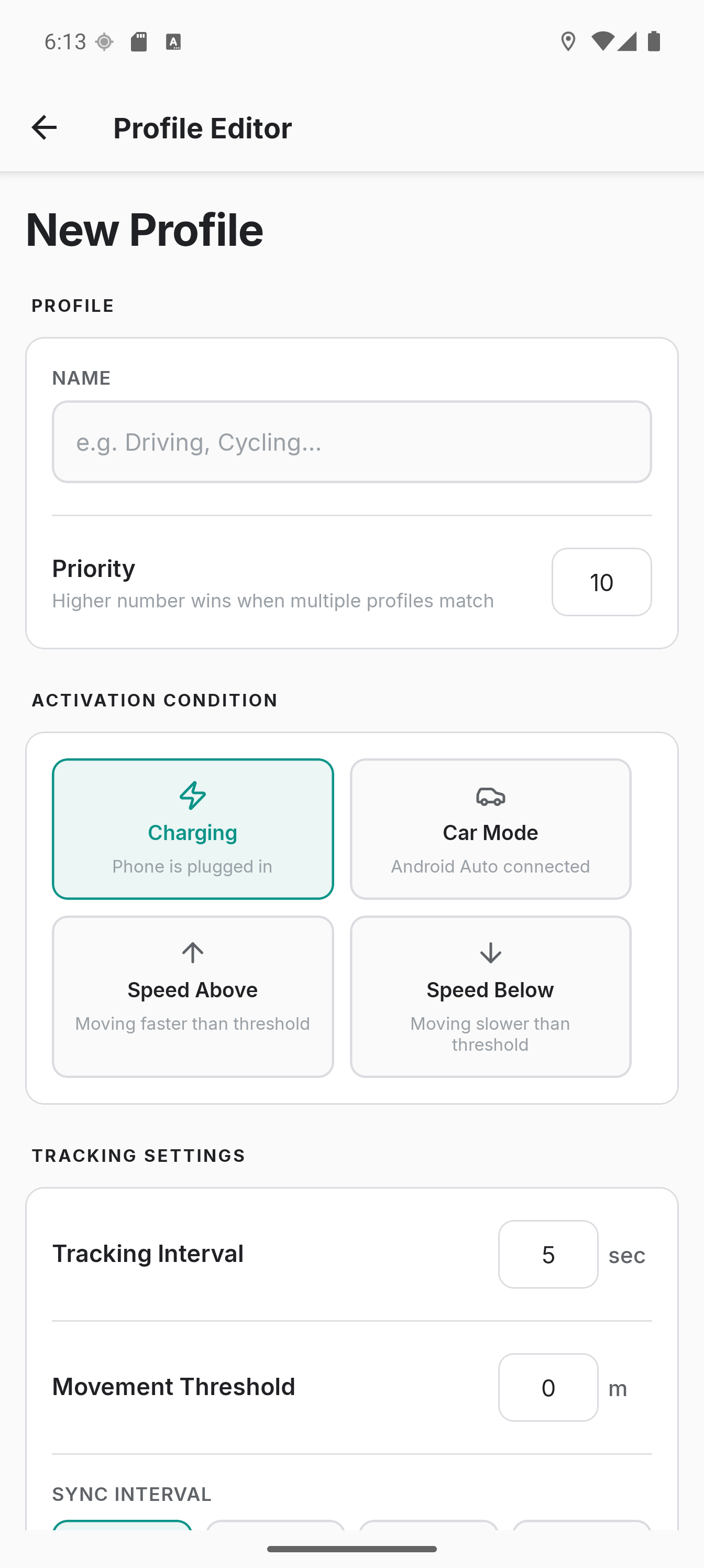
Use Cases
- Charging - Increase tracking frequency while plugged in (battery isn't a concern)
- Driving - Switch to frequent updates when Android Auto connects or speed exceeds a threshold
- Walking - Use longer intervals at low speeds to conserve battery
- Stationary - Record a periodic heartbeat point (e.g. every 30 min) as proof-of-presence while not moving
Setup
- Go to Settings → Tracking profiles
- Tap Create profile in the app bar
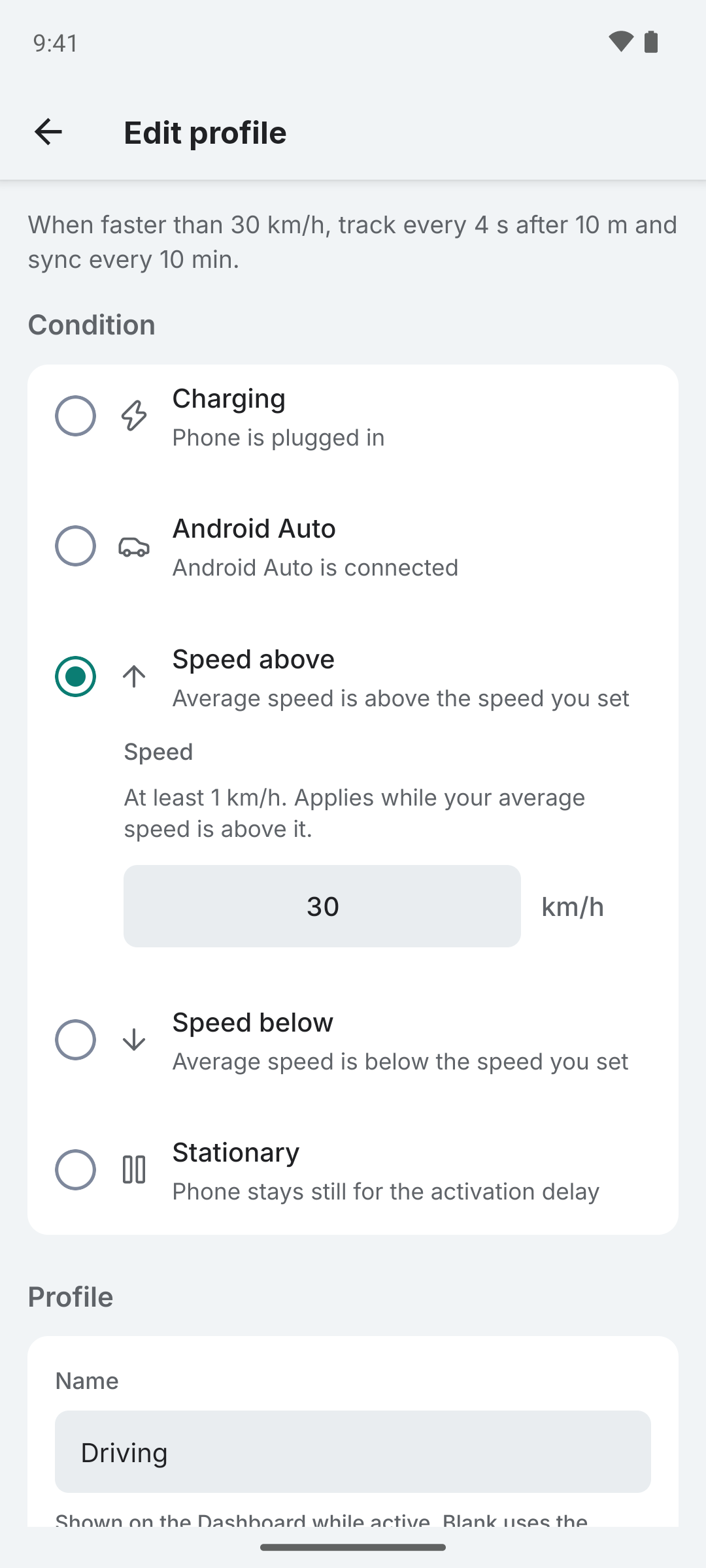
- Pick the condition; each row says what watching it costs, and a speed condition asks for the speed
- Optionally name it (blank saves as the condition's name) and set a priority
- Set the tracking interval, movement threshold and sync interval; each field says which Tracking & sync value it replaces
- Tap Create profile
The editor's first line reads the rule back as you build it, for example "When charging, track every 5 s, any movement and sync each fix." Tap a profile in the list to edit it; Delete is at the bottom of the editor.
The list
The list opens with a line that says which profile is in force and its values, "No profile active · Tracking & sync applies: …" while tracking runs without one, or "Profiles apply while tracking runs" while tracking is off. Below it every profile is one row in evaluation order, reading as a sentence: condition, then what it records, then how it syncs, for example "When charging · Every 5 s, any movement · syncs each fix". The row in force opens with "Active". The switch beside a row enables or disables it without opening it; a disabled profile is never in force.
Condition Types
| Condition | Trigger |
|---|---|
| Charging | Phone is plugged in to a power source |
| Android Auto | Android Auto is connected |
| Speed above | Average speed exceeds the speed you set (km/h or mph) |
| Speed below | Average speed drops below the speed you set (km/h or mph) |
| Stationary | Still for the activation delay (60 s by default) |
A stationary profile records less often, but GPS stays on. To stop GPS while you stay somewhere, use a geofence with WiFi pause or motionless pause.
Speed conditions use a rolling average of the last 5 GPS readings to avoid triggering on momentary speed spikes. The stationary condition uses a fixed speed threshold (0.3 m/s) that has to hold across 60 seconds of fixes, so unlike speed-below it does not flap on GPS noise near zero. The window is measured over the fixes themselves, so a stretch with no fixes at all is not counted as stillness and the profile waits for the stream instead of switching on.
Colota starts the motion detector when the device goes still. It watches accelerometer variance and the hardware significant motion sensor together, so moving again usually ends the profile within seconds rather than at the next fix. That is why the editor hides the deactivation delay here.
The sensor is not a guarantee. It can miss a slow, gentle start, and not every device has the hardware sensor that can wake a sleeping phone. If it does not notice you starting to move, the profile ends only once GPS reports movement, which at a long interval means waiting for the next fix. That is what the editor warns about above 60 seconds.
Stationary profiles always use a 0m distance filter and ignore the setting. Fixes taken in one spot sit a few meters apart, so anything larger would drop the points the profile is there to record.
The stationary condition needs GPS speed below 0.3 m/s across 60 seconds of fixes, and the accuracy filter can stop that working from either direction. Too loose (40m or more) and noisy fixes report speeds above the threshold, restarting the count. Too tight and the fixes are dropped before the speed check ever sees them, which leaves the condition with nothing to measure. Either way the profile does not activate. Around 15m keeps both out of the way.
Your distance filter does not have that effect: whenever a speed or stationary profile is enabled the app asks Android for every fix, and the filter only decides what gets saved.
Profile Settings
Each profile overrides the default tracking configuration with:
- Tracking interval - How often to request a location fix (seconds)
- Movement threshold - Minimum movement required between updates (meters or feet)
- Sync interval - How often to sync with the server (Instant, 1 min, 5 min, 15 min, or Custom)
- Priority - Determines which profile wins when multiple conditions match simultaneously (higher wins; equal numbers go to the older profile)
- Activation Delay - How long the condition must keep matching before the profile is applied (seconds, default 0 = immediate). Prevents activating on brief spikes, e.g. a momentary speed reading. For the Stationary condition it instead sets how long the device must be still before the profile activates (default 60s).
- Deactivation Delay - How long the profile stays active after its condition stops matching, also when a lower-priority profile matches (seconds). Prevents rapid toggling when conditions fluctuate.
When creating a new profile, the tracking interval, movement threshold and sync interval are pre-filled with your current Tracking & sync values, and each field says which value it replaces. The values a profile hands back to are the ones the service loaded when tracking started; a Tracking & sync change applies at the next restart. A profile's sync interval applies at the switch, counted from the last scheduled sync; a shorter one syncs at once when that much time has already passed.
Choosing delay values: together the two delays make a profile "sticky" - hard to switch on by accident, hard to switch off by accident. Clean on/off signals like Charging and Android Auto want activation 0 (switch the instant you plug in or connect) plus a small deactivation delay so a brief disconnect or cable wiggle does not drop you. Noisy signals like speed want both: an activation delay to ignore short spikes (a Driving profile won't trigger from one GPS glitch while you walk) and a longer deactivation delay to ride through red lights, traffic and tunnels without flapping. Rule of thumb: if a profile keeps flickering on and off, raise the delays; if it reacts too slowly, lower them. Tracking never stops during either wait - you stay on your defaults through an activation delay, and on the profile through a deactivation delay.
Priority
When multiple conditions match at the same time, the profile with the highest priority wins; equal priorities go to the older profile. The list shows profiles in that order, so it is the order they are checked in.
If you use both a Speed Below and a Stationary profile, give Stationary the higher priority. Otherwise the speed profile keeps GPS running at its interval and the stationary heartbeat never kicks in.
Example Configurations
| Profile | Condition | Interval | Distance | Priority | Activation | Deactivation | Use case |
|---|---|---|---|---|---|---|---|
| Stationary | Stationary | 1800s | 0m | 40 | 60s | n/a | Heartbeat while not moving |
| Driving | Android Auto | 10s | 1m | 30 | 0s | 30s | Detailed route while driving |
| Walking | Speed below 8 km/h | 60s | 2m | 20 | 20s | 45s | Battery-friendly on foot |
| Charging | Charging | 15s | 0m | 10 | 0s | 30s | High accuracy while plugged in |
Note that Stationary has the highest priority so it takes over from Walking when you stop. Charging has the lowest priority so a more specific profile (e.g. Driving) wins when both match.
How It Works
- When tracking starts, all enabled profiles are evaluated against current conditions
- The highest-priority matching profile's settings override the defaults
- If a profile has an activation delay, its condition must keep matching for that long before it is applied; if the condition drops first, or a higher-priority profile takes over, the activation is cancelled
- When the condition no longer matches, a deactivation delay timer starts, also when a lower-priority profile matches
- If the condition matches again before the delay expires, the timer is cancelled. A higher-priority profile that matches still takes over as soon as its own activation delay has passed
- After the delay expires, the highest-priority matching profile takes over once its activation delay has passed. Until then, or if nothing matches, settings revert to the defaults configured in the Settings screen
- Profile changes made in the editor take effect immediately on the running service
- Tracking & sync shows the active profile above the Recording and Sync interval groups with the values in force. The rows below are the defaults the profile is overriding
Active Profile Indicators
When a profile is active, Colota shows it in three places:
- Dashboard - The state line reads "Tracking · ProfileName"
- Tracking profiles - The list's first line names it with the values in force, and its row opens with "Active"
- Tracking & sync - A line above the Recording and Sync interval groups names it with the values in force
All of them clear when the profile deactivates (after the deactivation delay) or when tracking stops.
A blank name saves as the condition's name, so two untouched charging profiles are both called "Charging"; a setup link import replaces a profile by name, so give profiles you share distinct names.