Editing Trips
Colota groups location history into trips automatically. A new trip starts after 15 minutes or more without a fix. Where that guess is wrong, merge and split correct it. Neither changes your location data.
Two cases the gap threshold gets wrong:
- One journey split up - a long stop, bad signal indoors, a slow queue
- Two journeys run together - driving to a trailhead and then hiking is one unbroken stream of fixes
Merging Trips
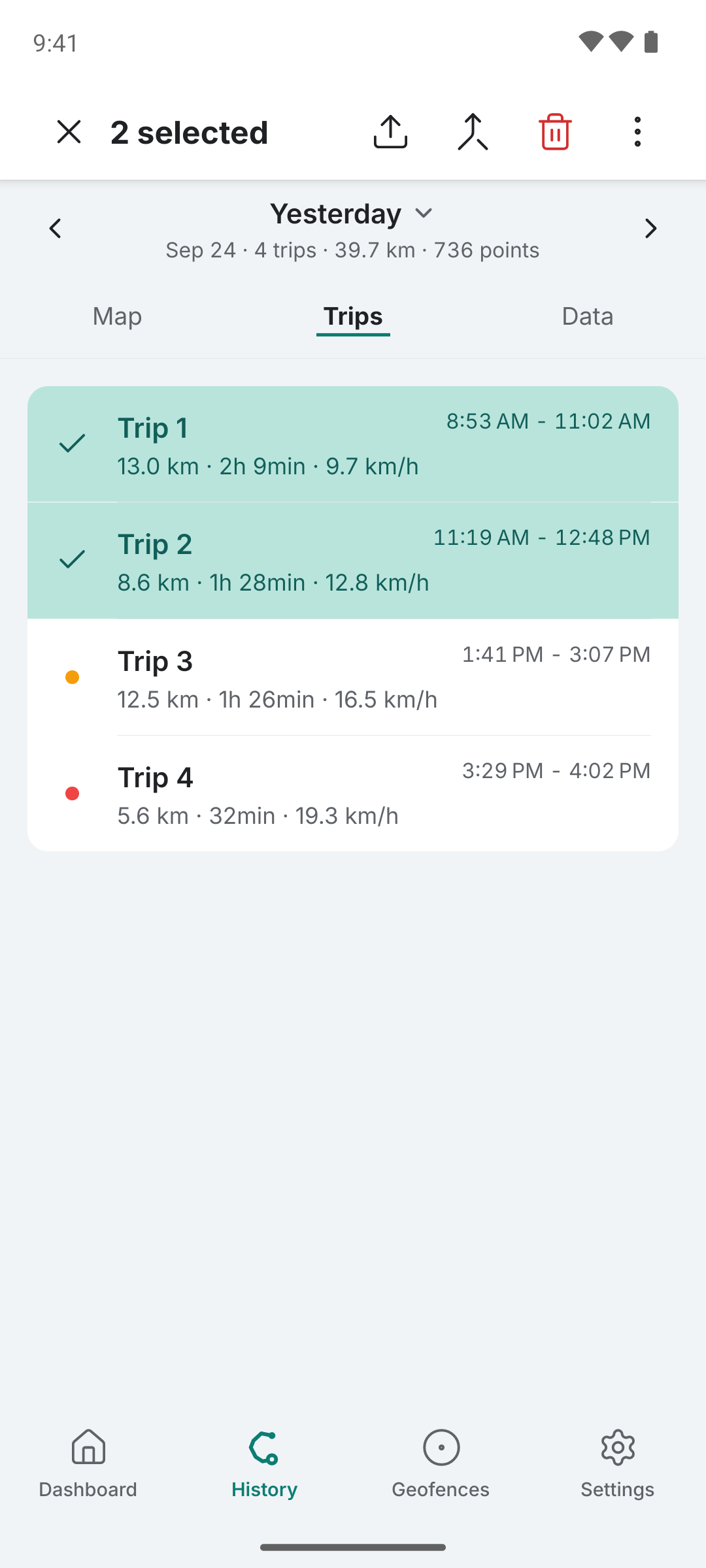
- Go to Location History → Trips
- Long-press a trip to enter selection mode
- Tap the other trips you want to join
- Tap the merge icon in the selection header and confirm
Merge is only available for trips next to each other in the list. Merging trips 1 and 3 would absorb trip 2, so select the whole run instead.
No points are moved or deleted. Trips are renumbered afterwards, so a day with four trips shows three.
Splitting a Trip
Split from the map on Trip Detail; the Location History map shows a point's details but does not split.
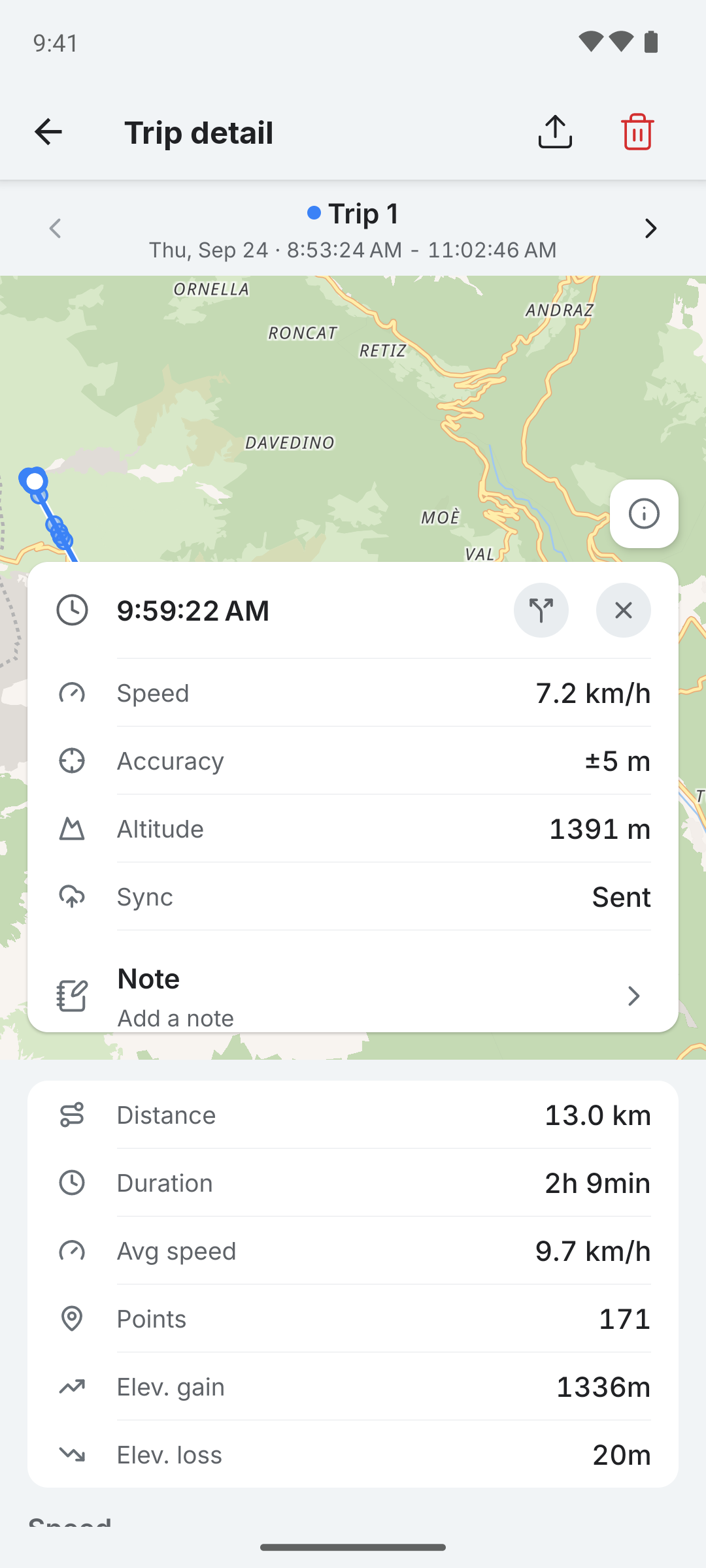
- Tap the point where the new trip should start
- Tap the split icon in the card that opens over the map
- Confirm
The previous trip ends at the point before the one you picked. The confirmation names that point's time, since the dialog covers the card.
Splitting returns you to the day view, where the track is coloured per trip, because the trip you were viewing is now two.
Zoom in first where points are bunched together, which happens wherever you moved slowly or stopped. The time in the card identifies the exact point.
Points that cannot be split
A split makes two trips and each needs at least two points. So the first two and last two points of a trip are unavailable, and a trip with fewer than four points cannot be split at all.
The Map tab also draws points that belong to no trip, from runs that never travelled far enough to count as one. Those cannot be split either.
Colota says which case applies instead of doing nothing.
What Edits Survive
Edits are stored separately from location data, keyed by the timestamps either side of the boundary rather than by a specific point.
| Survives | Does not survive |
|---|---|
| Deleting points near an edited boundary | Delete All Locations |
| Backup and restore, including to another device | Export and re-import elsewhere |
Deleting a point next to an edited boundary keeps the edit valid. If the deletion leaves one side of a split with a single point, that side stops being shown as a trip. Exported files hold location points only, so importing them elsewhere gives you automatic segmentation.
Editing the same boundary twice keeps the last action: splitting a boundary you previously merged overrides it, and the reverse also works. Trips are recomputed each time you open a day, so any edit can be undone with the opposite action.
Effect on Statistics
The calendar and summary screens use the same boundaries as the trip list, so edits show up there too.
Colota normally discards trips that never travel more than 100 m, which keeps stationary GPS jitter out of your history. A trip you split by hand is exempt, so a short segment you deliberately separated is kept.
Related
- Data management - deleting trips and individual points
- Backup & restore - what a backup includes
- Troubleshooting - other history and tracking issues