Data Import
Merge location history from external files into your Colota database. Data Import is additive: existing locations are preserved and duplicates are skipped. Use this to recover from a Colota export, migrate from Google Timeline, or pull historical data from another tracker
Imports can't be selectively undone. Points can only be removed one at a time, by trip, by age or all at once, so unpicking a large import means clearing a window that also holds genuine points. Take a Backup first if you're unsure.
Supported Formats
The format is detected automatically from the file content; you don't pick it.
| Format | Extension | Source |
|---|---|---|
| GeoJSON | .geojson | Colota's own export. Any FeatureCollection of Point or MultiPoint features with a time property also works. |
| Google Timeline (legacy) | Records.json | Older bulk Location History export from Google Takeout. Google removed Location History from Takeout in late 2024 - use this format for files exported before then. |
| Google Timeline (new) | .json | On-device export from Android Settings → Location → Location services → Timeline → Export Timeline data. |
| GPX | .gpx | GPS Exchange Format. Sport watches (Garmin TrackPointExtension supported), Strava, generic trackers. |
| KML | .kml | Keyhole Markup Language. Google Earth, My Maps. Placemarks with TimeStamps only. |
| CSV | .csv | Any CSV with latitude, longitude, and a time column. Column order doesn't matter. |
For exotic formats (Strava .fit, OwnTracks .rec, custom tracker dumps) - convert them to one of the above first.
Getting a Google Timeline file
Google moved Location History off the cloud onto the phone in late 2024, so the export path depends on when you saved your data:
- Google Takeout (legacy
Records.json): visit takeout.google.com, choose Location History → Export. Google removed Location History from Takeout in late 2024, so this only succeeds for accounts that exported before then. - Google Maps app (current): open Google Maps → tap your profile picture → Your Timeline → Settings → Export Timeline data. Exact menu names shift between Maps versions, so look for an "Export Timeline data" entry.
- Android device settings (current): Settings → Location → Location services → Timeline → Export Timeline data.
The exported file is saved to your phone's Downloads folder.
How to Import
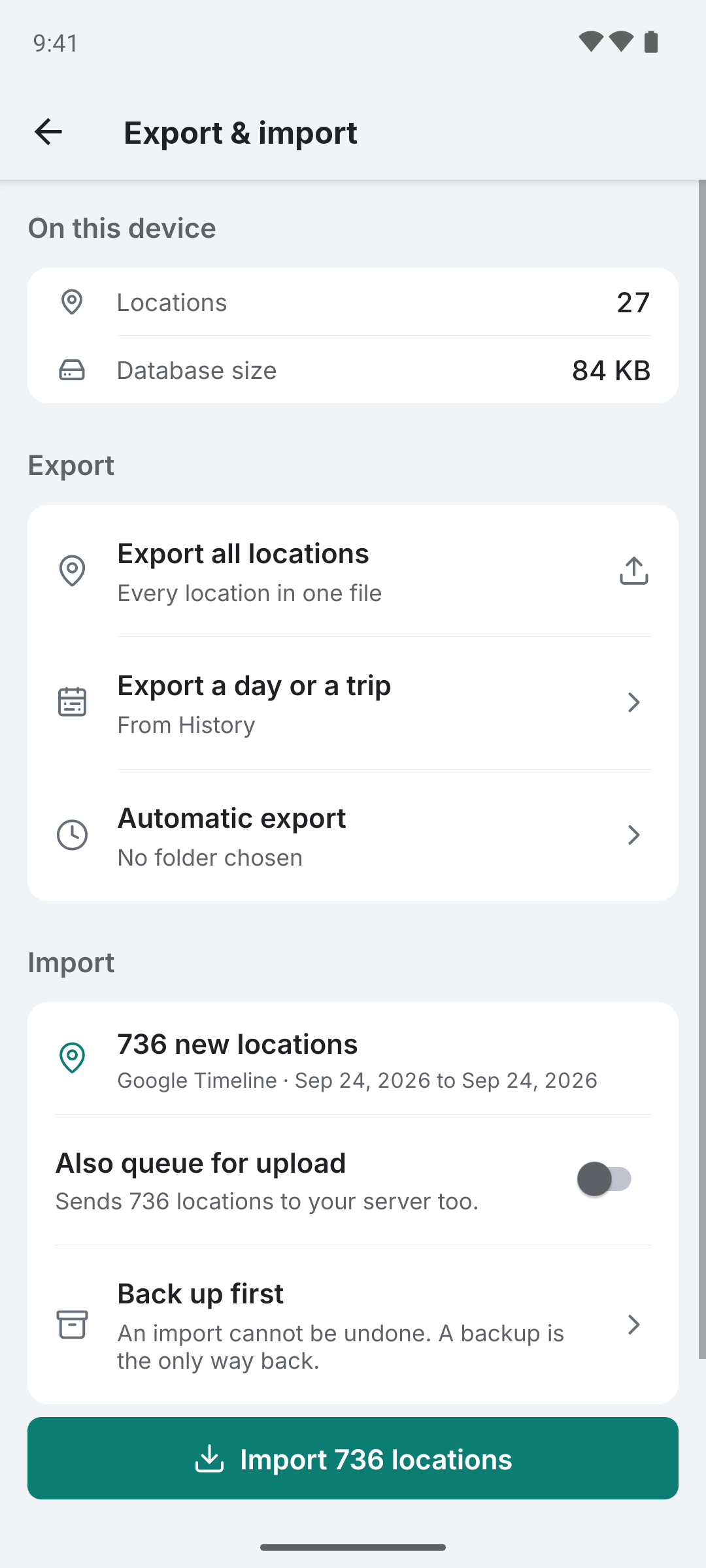
- Go to Settings → Export & import
- Tap Import a file and pick the file you want to import. A CSV needs a header with latitude, longitude and a time column
- Wait for the parse to finish (large Google Timeline files can take 10+ seconds)
- Review the preview: new locations, format and date range, and any duplicates or unusable rows being skipped
- Optionally switch on Also queue for upload (see below), then tap Import N locations and confirm
How duplicates are handled
Two rows are considered duplicates when they share the same timestamp (1-second precision) and their latitude/longitude match to ~10 cm. This means:
- Re-importing the same file is safe: every row is recognised as a duplicate, nothing changes.
- Two genuinely different samples taken seconds apart from nearby coordinates are both kept.
- Both file-internal duplicates (same point listed twice in the source) and DB-vs-file duplicates (the row already exists in your history) are detected.
Invalid rows
Rows are dropped silently as "invalid" when any of the following hold:
- Missing latitude, longitude, or timestamp
- Coordinates out of range (latitude not in [-90, 90] or longitude not in [-180, 180])
- Timestamp more than 5 minutes in the future
- Geometry type isn't a Point or MultiPoint (LineString-only KML Placemarks for example)
The preview shows the invalid count so you can decide whether to proceed.
Import or import and queue
If you've configured an optional sync backend in Settings → Connection, the preview shows an Also queue for upload switch. It only affects whether the imported rows are also pushed out to that backend; either way the points land in Colota's local history.
Import
- Rows are written into Colota with
sent=1- flagged as already replicated. - The sync engine will not push them to your backend.
- Use this when the backend already holds these points - for example, you're re-importing your own Colota export, or repopulating local history after a "Delete synced locations".
Import and queue
- Rows are written into Colota with
sent=0and enqueued for upload. - The next sync cycle replicates them to your configured backend.
- Use this when the points are new to your backend - for example, you imported a Google Timeline archive and want the backend copy to mirror it too.
The switch only appears when a sync endpoint is configured and offline mode is off. If it's missing, configure sync in Settings → Connection first.
Once queued, the rows are uploaded as soon as the next sync runs. Removing them from the backend afterwards isn't something Colota can do for you. If you're importing a multi-year archive (100k+ points), expect the queue to fire that many upload requests against your backend; make sure it can handle the load.
After Import
- Imported rows show up immediately on the Dashboard and Location History screens.
- Trip detection re-runs on demand the next time you open a screen that uses it (the trip computation is derived from the locations table on the fly).
- If you imported with Also queue for upload on, the queue counter in Data management reflects the new pending rows; the next sync cycle replicates them to your configured backend.
Edge Cases
- KML LineString-only tracks are skipped. KML's schema doesn't carry per-vertex timestamps, so we can't invent them. The vertices count as "invalid" in the preview so you know data was dropped.
- GPX without
<time>elements are skipped. Same reason - the locations table requires a timestamp. - CSV without lat/lon/time columns is rejected with a clear error rather than silently producing zero rows.
- Very large files (500 MB+ Google Timeline exports) parse without loading the full document into memory. Expect the preview phase to take some seconds; the actual commit is fast once you confirm.