Backup & restore
Bundle your locations, settings and credentials into a single password-encrypted file you can store anywhere - cloud drive, USB stick, another device.
Use this when you want a full archive of your data, when you're moving to a new device, or as insurance before clearing data. For day-to-day analysis or sharing tracks, use Data Export instead. If you only need to merge locations from another file into your existing history without overwriting, use Data Import - that path is additive with duplicate-skipping, while Restore here is replace-everything.
What's Included
| Included | Excluded |
|---|---|
| Location history (the full SQLite database) | mTLS client certificate (the private key is generated inside the OS keystore and cannot be exported) |
| Settings (sync, GPS, server, appearance) | Offline map tiles (re-download after restore) |
| Geofences and tracking profiles | Cached map tiles |
| Manual trip merges and splits (see Editing Trips) | |
| Auth credentials (Basic, Bearer, custom headers) | |
| mTLS Trusted Server CA (public cert bytes) |
The client certificate belongs to the device, not to the archive. A backup cannot carry it and a restore does not remove it, so the certificate on the device you restore onto is the one that stays in use. A device that has none will need one imported before an mTLS endpoint from the archive will connect.
The auth credentials Colota uses to reach your tracking endpoint (Basic Auth, Bearer token, custom headers) are stored as plaintext inside the encrypted container - they are protected by the backup password, not by the device's hardware-backed key. The leaked credentials let an attacker do whatever your server lets those credentials do. If you configured Colota with a credential limited to writing location data, that's all an attacker gets. If you used a credential tied to a user with broader privileges, or any token with more scope than posting locations requires, the attacker inherits that scope. Configure Colota with the minimum permission its endpoint actually needs. On restore the credentials are rewrapped under the destination device's key.
Creating a Backup
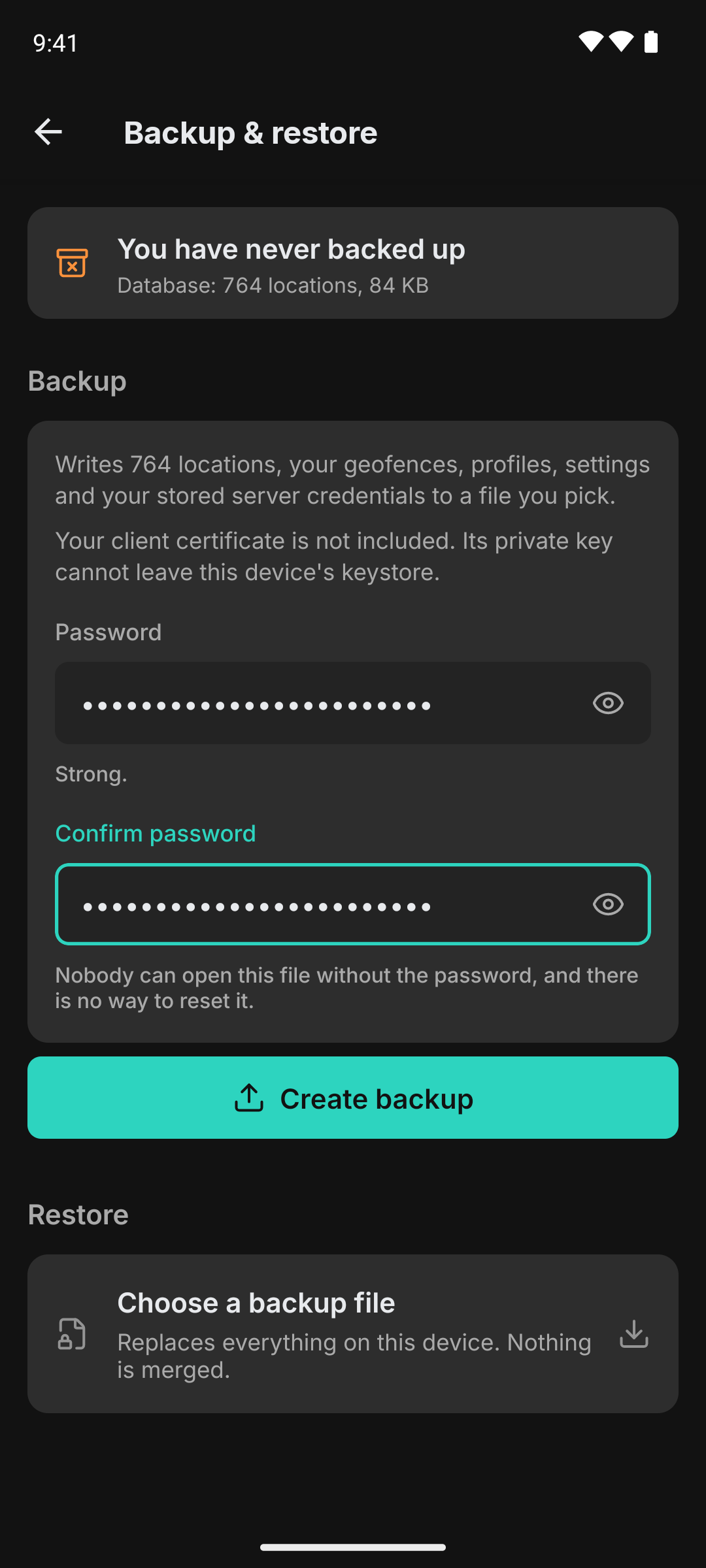
- Go to Settings → Backup & restore
- Enter a password (12 characters minimum) and confirm it
- Wait for the line under the field to read at least OK
- Tap Create backup
- Acknowledge the no-recovery warning
- Choose where to save the
.colotafile
The app encrypts the file as it writes. You can leave the screen and the backup keeps running in the foreground until it finishes; a notification shows progress.
Password Requirements
Both are hard limits. The line under the password field is the same verdict the app checks against, so a password it calls OK or better is one Create backup will accept.
- 12 characters minimum
- 50 bits of entropy minimum
- Sequences like
abcdand1234cap the score, as do passwords with fewer than 4 distinct characters
A random 16-character password from a password manager, or a 4-5 word passphrase, both clear the bar comfortably. Common words and short tweaks of dictionary words do not.
No password recovery If you lose the password, the backup cannot be opened. Ever. There is no recovery code, no email reset, no developer override. Store the password somewhere you trust before you create the backup.
Restoring from a Backup
Replaces all current data Restoring overwrites every location, setting, geofence and credential currently on the device. There is no merge mode and no undo. Take a backup of the current device first if you might want to roll back.
- Go to Settings → Backup & restore
- Tap Choose a backup file and pick the
.colotafile - Type the backup password and tap Open this file
- Check the date and app version the screen now reports
- Tap Replace all data and confirm
- The app pauses tracking, swaps the database and restarts itself
- Re-enable tracking from the Home screen when you're ready
Opening the file is a read, not a commitment. It checks the password and reads what the archive holds without extracting anything, pausing recording or touching your data, so a wrong password costs you a retry. Replace all data does not appear until the file has been opened, so you never aim a destructive button at an archive nobody has verified.
What Gets Paused
To swap the database safely, the restore stops the location tracking service and any in-flight auto-export. If a writer can't be stopped within ~5 seconds the restore aborts before touching your data. The auto-export schedule is armed again when the restore finishes, whether or not it succeeded, and a restore that aborts before replacing your data starts tracking again.
After restore, tracking is left off so the new device doesn't silently start uploading on the old credentials. Re-enable it when you've checked the data is correct.
Compatibility
| Source backup schema | Destination app schema | Result |
|---|---|---|
| Same as destination | - | Direct restore |
| Older than destination | - | Restored, then auto-migrated |
| Newer than destination | - | Refused - update the app first |
Backups are forward-compatible (open in the same or newer app version) but not backward-compatible. If you upgraded recently and need to restore an older backup, just install the latest version.
File Format
| Property | Value |
|---|---|
| Extension | .colota |
| MIME type | application/octet-stream |
Each file is authenticated end-to-end with a key derived from your password. Wrong password, a flipped byte, or truncation all fail to open. The format and implementation live in BackupFormat.kt and BackupCrypto.kt if you want to verify.
Failure Modes
Every failure that happens before the swap ends with the same sentence, Nothing on this device was changed, because on every one of them it is true.
| Error message | Cause |
|---|---|
| That password did not open this file | Wrong password, or the first chunk has been tampered with |
| This is not a Colota backup | Magic bytes don't match, the file is something else |
| This backup was made by a newer version of Colota | Schema is ahead of the installed app |
| This file is damaged and cannot be trusted | Mid-file tamper, or the integrity check failed |
| This file is incomplete | Truncation, so the file was probably never finished being written |
| The file is intact but this version of Colota could not read its database | A migration of the archive's database failed. Not the same as a damaged file |
| This file is missing part of a backup | Container is missing the database or manifest entry |
| There is not enough free space to unpack this backup | The device ran out of room before the swap |
| Your server credentials could not be applied | Database restored, but the credential write failed. Enter them again on Connection |
| Something failed after the swap | The database is the backup's, but a later step did not finish. Check Connection and Tracking |
The last two are the only entries where your data was replaced. Both leave recording off, like a clean restore does.
If a backup fails mid-encrypt, the app deletes the partial .colota file at the destination. If that cleanup fails (some cloud providers reject delete on freshly-created files), the error message tells you to delete it manually.
Storage Reference
A backup is roughly the size of your SQLite database after deflate compression (typically 30-60% of the raw DB size). Use the Data management screen to see the current database size before backing up.