Server Settings
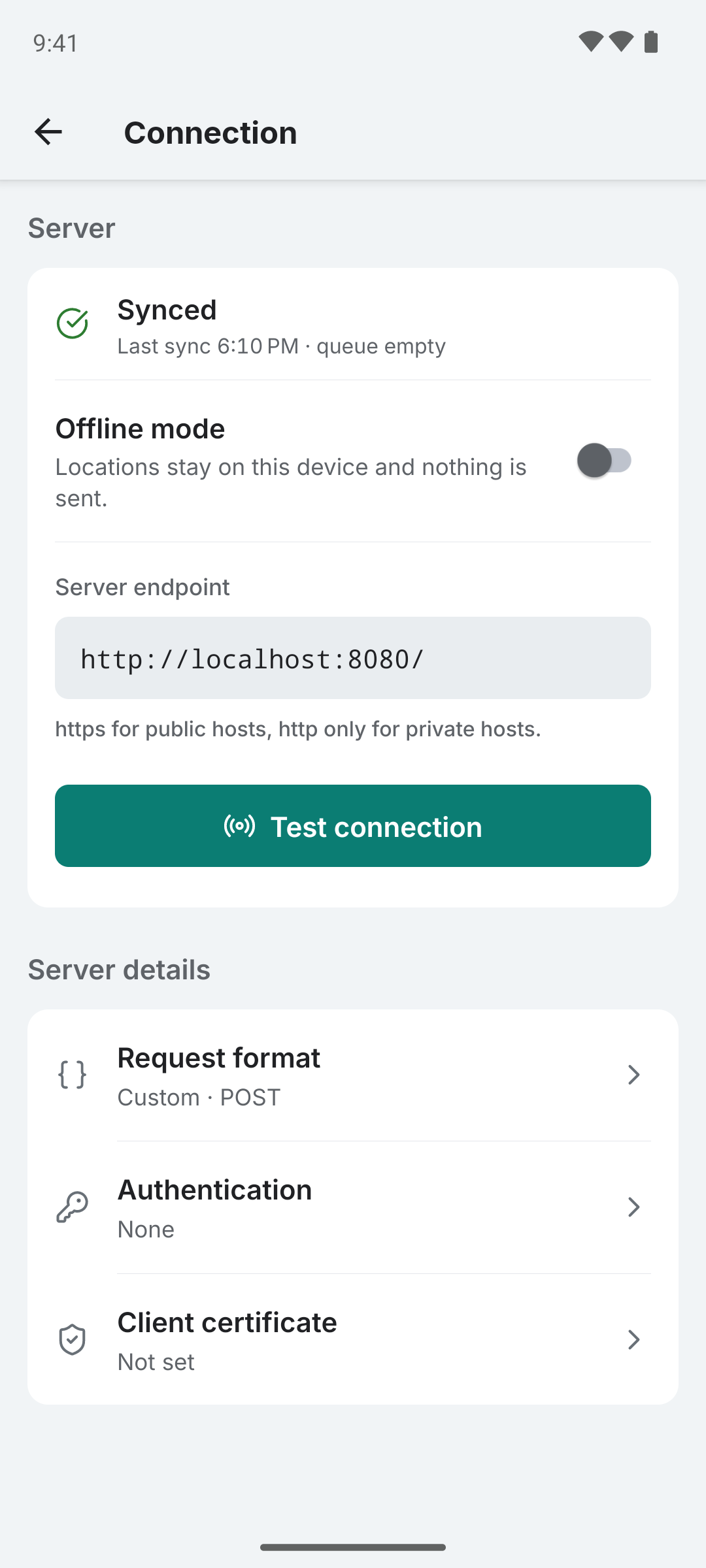
Found under Settings → Connection. The Server card opens with a line that says what sync is doing now (Synced, Not synced yet, Sync failing with the server's own sentence, No network, No server, Offline mode), then the settings that produced it. The Server details card below it opens Request format, Authentication and Client certificate, each row showing its stored value.
| Setting | Description | Default | Range |
|---|---|---|---|
| Server endpoint | HTTP(S) URL of your server | Empty (offline) | -- |
| HTTP method | POST (JSON body) or GET (query params) | POST | POST / GET |
| Sync interval | Batch mode interval | Instant (0) | 0s - Custom |
| Offline mode | Disable all network activity | Disabled | On/Off |
Endpoint URL
Your server endpoint must accept HTTP or HTTPS requests (POST or GET depending on your HTTP method setting). The field's placeholder shows the shape the chosen backend template expects. The address is saved when you leave the field, not on every keystroke, and only when it passes: an address without http:// or https:// and a host is refused, and plain http:// to a public host is refused with "http is refused for a public host. Use https." Plain http:// to a private host (192.168.x, 10.x, 172.16-31.x, 100.64.x, localhost) is saved with a warning that it is not encrypted, and an address carrying a key in its query string is saved with a warning that the key is stored with settings, not encrypted, and included in setup links.
Self-signed and private-CA certificates are supported via three trust paths (system CAs, user-installed device CAs, or an in-app imported CA). Servers that require client-certificate authentication (mTLS) are also supported. See the mTLS guide for setup.
On Android 17+, connecting to another device on the local network (everything above except localhost) requires the ACCESS_LOCAL_NETWORK permission. Colota requests this when you use Test connection. See Permissions for details.
Test connection sits under the field. It sends your latest recorded location to the address with your credentials, so it needs one recorded fix, and it is disabled with the reason until it has one or while the address does not pass. The result stays under the button until the next test or an edit: Reachable with the HTTP status and the time, or Not reachable with the status or "No response" and the server's own sentence. Test saves nothing itself; the field does, when you leave it.
Multiple Backends
Colota sends to a single endpoint. To forward locations to multiple services simultaneously (e.g. Dawarich + Home Assistant), use colota-forwarder - point Colota at the forwarder and configure each target in the forwarder's environment variables.
URL Variables
You can use template variables in your endpoint URL for hive-style partitioning or date-based routing. Variables are resolved per location using the location's timestamp, not the current wall clock time, so queued or delayed sends use the correct date.
| Variable | Description | Example |
|---|---|---|
%DATE | ISO date (YYYY-MM-DD) | 2026-04-07 |
%YEAR | Four-digit year | 2026 |
%MONTH | Zero-padded month | 04 |
%DAY | Zero-padded day | 07 |
%TIMESTAMP | Unix timestamp (seconds) | 1775692800 |
Example: https://example.com/locations/%YEAR/%MONTH/%DAY resolves to https://example.com/locations/2026/04/07.
This is useful for backends that organize data by date (e.g. S3 with hive partitioning).
Sync Modes
- Instant (0s): Each location is sent immediately after recording
- Batch (1 min, 5 min, 15 min, or Custom): Locations are queued and sent in batches at the configured interval
- Offline: No network activity - data is stored locally only. See Offline Mode below.
Offline Mode
Enable Offline mode under Settings → Connection to use Colota as a standalone tracker without any server. Locations are recorded and stored locally on-device.
Enabling Offline Mode
When you toggle offline mode on with unsent locations still in the queue, a dialog offers several options:
- Sync first - attempt to upload queued locations before switching (only available if an endpoint is configured)
- Keep in queue - preserve queued locations for later sync when you disable offline mode
- Cancel - abort and stay in online mode
If no locations are queued, offline mode enables immediately.
What Changes in Offline Mode
The UI simplifies to remove sync-related elements that don't apply:
Hidden in offline mode:
- Server endpoint, Test connection and the Server details rows (Request format, Authentication, Client certificate); the sync state line and the Offline mode switch stay
- Sync interval, Sync only on (Any network / Wi-Fi or Ethernet / Specific Wi-Fi network / VPN)
- Queue statistics (Queued / Sent counts)
- Queue actions (Sync now, Delete queued locations, Delete synced locations)
- Queue info in the tracking notification, which reads "Offline mode" instead
Still available in offline mode:
- All tracking parameters (interval, movement threshold, accuracy)
- Tracking profiles and geofences
- Data export (CSV, GeoJSON, GPX, KML) - both manual and auto-export
- Database statistics (Total locations, Storage)
- Data cleanup (Delete older locations, Delete all locations, Compact database)
Disabling Offline Mode
Toggle offline mode off in Settings to return to online mode. If you had an endpoint configured before, syncing resumes with your previous settings. Any locations that were kept in the queue will be sent on the next sync cycle.
Retry Behavior
A location counts as delivered only when your server responds with a 2xx status - any other status or a network error is treated as a failure and retried. For custom endpoints, make sure your script or webhook returns 2xx on success.
When sync attempts fail, Colota uses exponential backoff:
Attempt 1: Immediate
Attempt 2: +30s delay
Attempt 3: +60s delay (1 minute)
Attempt 4: +300s delay (5 minutes)
Attempt 5+: +900s delay (15 minutes)
Failed uploads stay in the queue and are retried indefinitely until they succeed. No data is ever dropped due to failed sync attempts. You can clear the queue manually in Settings > Data management if needed.
The app also auto-syncs when network connectivity is restored.