Client certificate (mutual TLS)
Authenticate to your server with a client certificate at the TLS handshake, in addition to (or instead of) HTTP-level auth like Bearer or Basic. Useful when your reverse proxy enforces mTLS (e.g. nginx ssl_verify_client, Traefik, Cloudflare Access). If your server just needs a Bearer token or Basic Auth, you don't need this.
Configure in Settings -> Connection -> Client certificate. The screen opens with the certificate's state (Valid until a date, Expires in N days inside 30 days, Expired, Cannot be read) and where its key lives, then the subject and issuer, then Replace and Remove.
Setup
Two ways to provide a client certificate.
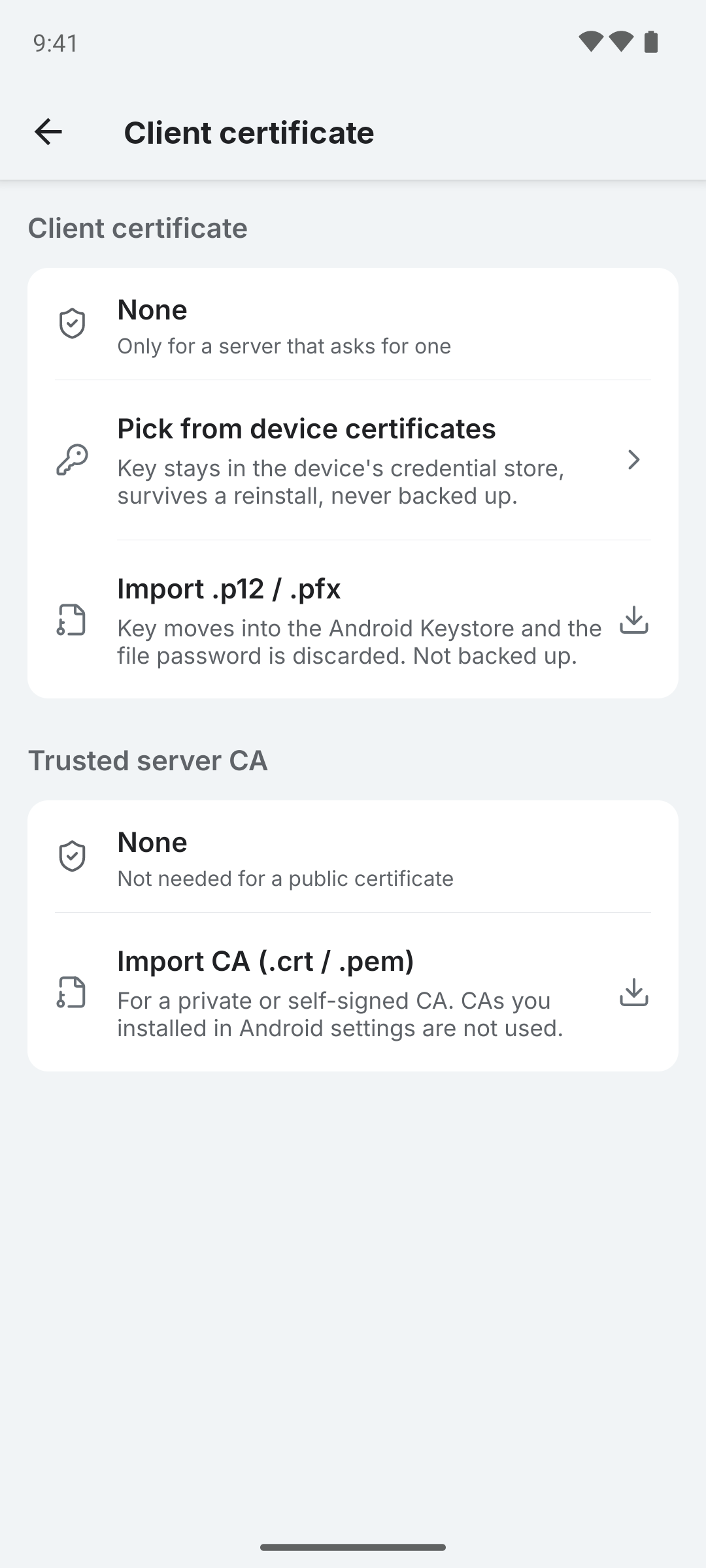
Option A: pick from device certificates (recommended)
If your cert is already installed in Android's KeyChain (via Android Settings -> Encryption & credentials):
- Open Colota -> Settings -> Connection -> Client certificate
- Tap Pick from device certificates
- Android's system dialog appears. Select your cert. With no certificate installed, Android closes the dialog at once and Colota says nothing was picked.
- The screen now reads Valid with the expiry date and "device credential store", plus the subject and issuer.
Colota only remembers which cert you picked - the key stays in the device credential store, survives reinstalling Colota and is never backed up.
Option B: import a .p12 file
If you have a PKCS12 file but the cert isn't installed at the OS level:
- Move the
.p12to your phone (any reasonably-secure transport works - syncthing, USB, etc.) - Open Colota -> Settings -> Connection -> Client certificate
- Tap Import .p12 / .pfx
- Pick the file, enter the file password (leave it empty if the file has none), tap Import
- The screen now reads Valid with the expiry date and "imported .p12", plus the subject and issuer. The key moves into the Android Keystore and never leaves the device; it is not backed up, so import again after a restore.
The new cert takes effect on the next sync request - no app restart needed. Same goes if you switch between Option A and Option B later.
Colota does not accept PEM client cert + PEM key as two separate files. Bundle them into a .p12 first, or install via Android Settings and use the KeyChain picker.
Hostname verification is always on - the server's certificate must match the hostname or IP you connect to.
Trust model
Colota's HTTPS trust anchors:
- System CAs that ship with Android (Let's Encrypt, DigiCert, ISRG, Google Trust Services, etc.). Always applied.
- In-app imported CA added through the Trusted server CA card on the same screen. One slot, trusted only by Colota.
Either anchor accepting the server's chain is enough - the two layers are additive.
User-installed device CAs (from Android Settings -> Encryption & credentials) are not honored, so malware or a coerced profile that plants a CA in the device store can't intercept Colota's sync.
Trusting a private/internal server CA
If your server uses a publicly-trusted certificate (e.g. Let's Encrypt), there's nothing to do here. Otherwise:
- Import in-app - Settings -> Connection -> Client certificate -> Trusted server CA -> Import CA (.crt / .pem). Trust is scoped to Colota; other apps on the phone are unaffected.
- Or switch to a publicly-trusted cert - Let's Encrypt is free and works for any public DNS name your server can prove ownership of.
Testing the setup
In Settings -> Connection, set your endpoint to your https://... URL and tap Test connection. Expected: Reachable with the HTTP status within a couple of seconds. On failure the line reads Not reachable and the server's own sentence sits under it:
| Message | Likely cause | Fix |
|---|---|---|
Server certificate is not trusted (self-signed or unknown CA) | Your server's cert is signed by a CA Colota doesn't trust | Import the CA under Connection -> Client certificate -> Trusted server CA, or use a publicly trusted cert |
Server requires a client certificate (mutual TLS) but none is configured | Server demanded a client certificate, Colota didn't send one | Add one under Connection -> Client certificate |
Server rejected the client certificate | Cert reached the server but was rejected | Wrong CA, expired cert, or revoked - check what your reverse proxy expects |
Incorrect password for client certificate | The provided password doesn't unlock the .p12 | Re-import with the correct password |
Hostname not verified | Server cert is valid but doesn't list the hostname/IP you connected to | Reissue the server cert with a SAN that includes your hostname/IP |
Lifecycle
Where the cert lives
Once imported, the cert lives in the OS keystore - not in the app's regular settings, not on the filesystem in plain form and not in any backup.
- You don't need to remember the PKCS12 password. It's used during import and then discarded.
- If you picked a cert from the device certificates list, it survives an app reinstall.
- If you imported a
.p12, uninstalling Colota removes it - re-import after reinstall. - The Trusted server CA is a public certificate; it is stored encrypted with the other credentials and included in encrypted backups.
- A certificate inside 30 days of its expiry reads Expires in N days on the card, on the Connection screen's Client certificate row and appended to the sync line, so a failing sync shows its cause.
Removing
Settings -> Connection -> Client certificate -> Remove, behind a confirmation that says requests to a server that requires it will fail until you add one again. Same for the Trusted server CA card. Replace offers the same two paths as the empty state. The next sync request runs without the removed certificate.